Friday, December 24, 2010

Installing Windows SharePoint Services Web Service Adapter BizTalk Server 2010/SharePoint Foundation 2010

I think a lot of you have read the excellent series ShareTalk Integration (SharePoint/BizTalk) by Kent Weare. Focus was on BizTalk 2009 and Microsoft Office SharePoint Server (MOSS) 2007. Now with BizTalk 2010 you are able to configure SharePoint adapter to Windows SharePoint Services like previous 2009 version.BizTalk Server 2010 supports two versions of WSS:

  • SharePoint Foundation 2010
  • Windows SharePoint Services 3.0 with SP2

Latter is explained in detail by Sandro Pereira, BizTalk 2010 Installation and Configuration – Install and Configure Windows SharePoint Services. In this post I like to share how to configure BizTalk SharePoint Adapter with SharePoint Foundation 2010.

Installing and configuring Windows SharePoint Services consists of the following procedures:

  • Install Windows SharePoint Services
  • Configure Windows SharePoint Services
  • Extend the Default Web Site as a virtual server

Install Windows SharePoint Foundation 2010

First step of installation is to install prerequisites. In my situation I am installing SharePoint Foundation on virtual machine (Windows Server 2008R2 x64, 4 core’s 4 Gb memory) following the installation manual for BizTalk Server 2010 called: Installing BizTalk Server 2010 on Windows Server 2008 R2 and 2008 (see BizTalk Server 2010 documentation).

SharePointFoundations1

When installing software prerequisites you just have to click Next a few times (it is pretty straight forward).

SharePointFoundations2

SharePointFoundations3

SharePointFoundations4

SharePointFoundations5

After this it installing SharePoint Foundation itself.

SharePointFoundations6

This involves also a couple of steps, where you have to make some choices.

SharePointFoundations7

Installation depends on if you want to do a standalone or server farm.

SharePointFoundations8

A Stand-alone installation configures a single computer with all the necessary files and settings to create a fully functioning SharePoint implementation, including Web server, application server, and database. SQL Server Express 2008 is installed and configured to provide data storage capability. SQL Server Express is based on the Microsoft SQL Server architecture, but it has the following limitations:

  • lack of enterprise features support;
  • limited to one CPU;
  • one gigabyte (GB) memory limit for the buffer pool;
  • databases have a 4 GB maximum size;
  • SQL Server Express will not support a server farm configuration or a multi-processor computer.

In addition to the SQL Server Express limitations, the inherit SharePoint Foundation Standalone configuration limitation is that you cannot add servers to create a SharePoint farm. If you need to add another SharePoint 2010 Web Front End later than you won’t be able to. If you anticipate the need to scale up to a larger or more robust installation, choose the Server Farm option.

SharePoint Foundation 2010 Server Farm will install all components. You can add additional servers to form a SharePoint farm, including load balanced SharePoint 2010 Web Front End servers. The Complete option installs a Web server and configures the computer to provide application server functionality. The SharePoint Foundation 2010 Complete install option does not provide database functionality. If you continue with this option and your server does not belong to a domain, for instance just a workgroup you will see error if you proceed with steps below.

SharePointFoundations12

SharePointFoundations13

SharePointFoundations14

SharePointFoundations15

SharePointFoundations16

For development purposes, proof-of-concepts or demo it is better to choose Standalone. If you opted for this then the SharePoint 2010 Products Configuration Wizard will immediately begin the ten step configuration process.

SharePointFoundations17

SharePointFoundations18

After you have let the wizard run through, you should automatically be directed to a default SharePoint Foundation 2010 site that looks a lot like the screen below.

image13

Install Windows SharePoint Services Adapter

As soon as this has been done you can proceed with next steps installation manual. It then comes down to installing BizTalk. When you select components you will see that you can install Windows SharePoint Services Adapter.

SharePointFoundations19

SharePointFoundations20

As you can see it is a simple process of installing the Windows SharePoint Services Web Service Adapter when SharePoint Foundation 2010 is installed. Do bear in mind that SharePoint Foundation only install on x64!

Technorati:

Saturday, December 11, 2010

BizTalk-version table

3.0.1764.0 - BizTalk Server 2000 SP1a
3.0.2023.0 - BizTalk Server 2002 SP1
3.0.4902.0 - BizTalk Server 2004
3.0.5204.0 - BizTalk Server 2004 Rollup Package 1
3.0.6070.0 - BizTalk Server 2004 SP1
3.0.7405.0 - BizTalk Server 2004 SP2
3.5.1602.0 - BizTalk Server 2006
3.6.1404.0 - BizTalk Server 2006 R2
3.6.2149.10 - BizTalk Server 2006 R2 SP1
3.8.368.0 - BizTalk Server 2009
3.8.454.2 - BizTalk Server 2009 Cumulative update package 1
3.9.469.0 - BizTalk Server 2010
3.9.522.2 - BizTalk Server 2010 Cumulative update package 1
3.9.530.2 - BizTalk Server 2010 Cumulative update package 2
3.9.542.2 - BizTalk Server 2010 Cumulative update package 3
3.9.545.2 - BizTalk Server 2010 Cumulative update package 4
3.9.556.2 - BizTalk Server 2010 Cumulative update package 5
3.10.77.0 - BizTalk Server 2010 R2 CTP
3.10.171.0 - BizTalk Server 2013 Beta
3.10.229.0 - BizTalk Server 2013

Migrating BizTalk 2006R2 sources to BizTalk 2010 without (too much) pain

====================================
I originally posted this here but decided to repost here also because I believe this to be a real timesaver.
====================================

I ran into it. You probably did too. You tried to convert your BizTalk 2006R2 solution to BizTalk 2010 (or 2009) and found that your solution was OK, your C# libraries went just fine, but none of your BizTalk projects had been converted.

Then, when you retried this from the converted solution, or tried to load a .btproj directly, you got that dreaded message: Error converting project file. The element <BIZTALK> beneath element <VisualStudioProject> is unrecognized.

I 'blame' the BizTalk Deployment framework for this as Microsoft clearly thought no-one would ever try to move away from the suggested Deployment and Development build configurations. So if you, as we did, change it to Debug and Release when we moved to the BTDF, you are in for a bit of work.

Now I have for you the best way to get going. I found it just out of sheer desperation trying to get things working the way they should.

The best part? It takes just about 5 minutes per solution, independent of the size of it!!. It has worked for all solutions I have tried so far.

Now, How to do it.

1) Make sure you have a backup of your solution file BEFORE trying any conversions. You need the clean 2006R2 version (or : you can of course also use an Undo Pending Changes option of your TFS when the time comes to revert the solution file in step 7).

2)Just open the solution in Visual Studio 2010 as you want to. This will prompt the upgrade wizard to do what it does best.

3)Review the loaded solution. You should have a converted solution, loaded C# libraries and unloaded BizTalk projects.

4) Close all windows in Visual Studio.

5) Right-click each unloaded project file and select Edit to open it in text mode. You now should have all files open in text mode.

6) Using basic search and replace do a replace on all open documents replacing Name = "Debug" by Name = "Development" and replacing Name = "Release" with Name = "Deployment". Each replace should give a count of items replaced equal to the number of open BizTalk projects.

7) Now the big trick: Either close your solution and put back the backed up .sln file you made earlier and then re-open your solution OR just select Undo Pending changes on your solution file (AND JUST THE SOLUTION FILE...)

8) The Migration Wizard will trigger again and now will convert your BizTalk projects as expected.

9) Now we are almost done, except that you BizTalk project has a configuration base (Deployment/Development) that has not been defined in the solution (Release/Debug).

You need to get this back in sync. To do this, unload all BizTalk projects from the solution (right-click, select unload) and once again open them in textmode (all other windows closed)

10) Now reverse the replace: replace "Development" with "Debug" and replace "Deployment" with "Release". Save all files, then close all files.

11) Close and reopen you solution, as for some reason, Visual Studio complains about reloading projects that are already opened under the solution if you try to reload them now. Even when they are closed...

12) Reload all BizTalk projects in the solution, save and we are done.

So. I hope this just will get you going. Any comments, as always, are appreciated to make this work better, make note of exceptions to the rule etc etc.

Happy converting

Wednesday, December 08, 2010

C# solution to decompress BizTalk messages and their context

As most of you will know BizTalk messages and context are stored in the MessageBox and the Tracking database as Image types. By several people a number of posts have been written about decompressing BizTalk messages and their context and here's another one!

When we had an incident with quite some suspended (not resumable) instances, we needed to retrieve message content and context. This information should be used to take appropriate actions for damage elimination.

After a search I found this great article from Thiago Almeida. It even contains a sample solution! Good news though for an intermediate developer as me!
The last couple of days I've been working on the solution and made it use just the SQL method. My goal was to create functions in C#, that would decompress the fields that contains the message and the context and enable the user to use these functions in SQL queries they entered in a textbox.

It ended up with the screen you find below.

Click the image to enlarge it


After selecting the database server which contains the BizTalk databases, you select the MessageBox database. In the Query textfield you can enter your SELECT query. As you might have noticed already, there are 2 non-SQL functions in the currently entered query, namely:
  • @MessageToText() - used to decompress messages
  • @ContextToText() - used to decompress message context
These are the functions I designed to decompress the message content and context. Before the SQL query is fired at the database, the application will strip these functions (and their optional parameters) for later use, when the resultset is returned from the database.
So basically all you have to do is write a SQL query and when you have a field which contains message content or message context, surround that field with the appropriate function to have the message content or context returned from you MessageBox!

Since messages can be pretty large and you might not need the entire XML from it, or maybe you are not interested in all the context properties, I extended the functions to show just certain XML and/or certain properties from the message context.

Show just a part of the XML message
When you just need a certain part of the XML, you can enter a XPath query and the message will return just that XML. When the message doesn't contain the nodes, elements or attributes mentioned in th XPath query, an empty string is returned.

The @MessageToText() function than becomes called as follows:

@MessageToText([field that contains the message];"[XPath query]")
Example: @MessageToText(imgPart;"//CustomerInfo")

Show just certain context properties
When you just need certain context properties, you can select them by entering them in a semicolon seperated list, like this:

@ContextToText([field that contains the message context];[Context property];[Context property])
Example: @ContextToText(imgContext;MessageType; PortName; OrderType)

You can enter as many or little properties you need. Entering non existant (or typos) properties has no negative side effects.

Other features
Further I built a couple of small features.
  • Just like in SQL Server Management Studio (SSMS), when you select a part of the query, only that part is fired at the database.
  • When you have a decompressed a message and want to create a XPath query, you can copy the XML from the message, hit the Parse XML... button, paste the XML in the dialog that appeared and experience with the XPath query. When you're done testing the XPath query, you can copy it, close the dialog and paste the XPath at the appropriate position in the Query field.
  • To get a 'clean' resultset, you can choose to hide the Outer XML tag and/or the name of the context properties.
  • You can choose whether you want to see the field names in the resultset.
  • For better readability you can add whitespace between the records in the resultset
  • Word wrap is supported in the Output box
  • To protect you and your MessageBox from heavy load, only the top xx number of records will be returned, depending on the value selected in the dropdown box.
Recommendations on accessing the BizTalk databases
There are a couple of guidelines when accessing the BizTalk databases directly from SSMS:
  • Only do this when no other options are available
  • Just do SELECT queries
  • Don't forget the WITH(NOLOCK) hint
  • Never change existing BizTalk tables, indexes, triggers, SP's, etc...
If you call in Microsoft for help and they find modified BizTalk objects, you will be fully charged for fixing the problems.

Enjoy the tool and if you have any questions or comments, don't hesitate!

Here's the download: BTSDecompress solution

Prerequirement
The decompressing is done by the so called BTS Accessor. This standard BizTalk DLL needs to be installed on the machine where you run the decompress tool.

@Thiago: thanks for having me use your solution!

Thursday, February 26, 2009

SQL query to view all Instance Subscriptions and their expressions

From the Group Hub in BizTalk 2006 you can have a look at all existing subscriptions. However to have a look at the expression which is related to the instance, you have to open the Subscription Details screen and go to the Expression tab page.

At my current customer we needed to know which (and how many) subscriptions still exists from the previous version of our application, so we can take the appropriate action on them before migrating to the next version of our application.

Based on the BizTalk Server 2006 - Internals session, Lee Graber gave at TechEd 2006 in Barcelona, I took a backup from the Messagebox and Mangement database and in a offline situation, I did some investigation in the MessageBox-database tables which led to the following SQL query.

SELECT distinct
m.nvcName,
sub.dtTimeStamp,
sub.uidInstanceID,
ds.msgtype,
eq.vtValue
FROM Services s
INNER JOIN Modules m
ON s.nModuleID = m.nModuleID
INNER JOIN Subscription sub
INNER JOIN PredicateGroup pg
ON sub.uidPredicateGroupID = pg.uidPredicateORGroupID
INNER JOIN EqualsPredicates eq
ON pg.uidPredicateANDGroupID = eq.uidPredicateGroupID
ON s.uidServiceID = sub.uidServiceID
INNER JOIN BizTalkMgmtDB.dbo.bt_DocumentSpec ds
ON eq.uidPropID = ds.id
WHERE uidInstanceID is not null -- (not interested in the Activation subscriptions)
order by sub.dtTimeStamp

It is far from complete and I left out the matters which are only relevant to my customer (just some WHERE clauses), but perhaps this query is helpfull to others as well.
The Modules table contains the available BizTalk Applications, it relates to the Subcription table via the Services table.
Basically the Subscription part of the data model uses the following tables:

- Subscription
- PredicateGroup
- BitwiseANDPredicates
- EqualsPredicates
- EqualsPredicates2ndPass
- ExistsPredicates
- FirstPassPredicates
- GreaterThanOrEqualsPredicates
- GreaterThanPredicates
- LessThanOrEqualsPredicates
- LessThanPredicates
- NotEqualsPredicates

Depending of the operator used in the expression of the subscription, information is placed in the Predicate tables.

NOTE: take extreme care when querying the BizTalk database. Although possible it is not recommended to do updates to the BizTalk databases with self-created SQL queries.

Enjoy!

Friday, June 20, 2008

Ordina organises the first annualy international SOA Symposium for practitioners in Amsterdam

In early October 2008 the first annualy international SOA Symposium will be held in the Amsterdam Arena. A lot of international speakers will be there, amongst them Thomas Erl and Brian Loesgen!

There are 40 speaker sessions across the following 10 tracks:
- SOA Architecture & Design
- Service Modeling & BPM
- SOA & Business
- SOA & REST
- SOA & Web 2.0
- SOA Governance
- SOA Programming
- SOA Innovations
- SOA Infrastructure & Technology
- SOA Project Delivery & Methodology

Post-conference there will be three five-day certification workshops:
- Certified SOA Consultant
- Certified SOA Architect
- Certified SOA Analyst
The workshops are organised by SOASCHOOL.com.

The symposium and the workshops look great, so I'm really looking forward to going there!

Friday, April 13, 2007

Two great articles about the Oracle adapter

Last week I had to help a collegue with the Oracle adapter. To get started I used the following 2 articles:

Richard Seroter's Walkthrough

Wilfried Mausz's Oracle adapter demo

These two articles and some general BizTalk knowledge helped me to understand most of the Oracle adapter in very little time.

Sharing knowledge rocks! Thanks guys!

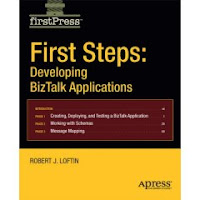
Another new book: 'First Steps: Developing BizTalk Applications'

Apress released another book about BizTalk.

Here's the description:
First Steps: Developing BizTalk Applications is a primer to most other introductory Biztalk books. If you feel like traditional beginning books are too abstract, and that you are mired in detail and missing the "big picture," check out this book. It's not a reference -- it's a jumpstart to learning Biztalk. You learn about the product in a phased approach. This way, you learn just what you need to know, when you need to know it. And the entire book is example-based: you learn by doing. Each phase provides detailed instructions for creating, deploying, and testing a BizTalk project. Through the book's projects, you will be exposed to orchestrations, pipelines, maps, schemas, messages, ports, shapes, the BizTalk Server Administration console, and the Health and Activity Tracking (HAT) tool.

Monday, April 09, 2007

UK SDC BizTalk 2006 Documenter: '192' is not a valid value for Microsoft.Sdc.BizTalkOM.TrackingType

As stated by other BizTalk developers as well, I think the UK SDC BizTalk 2006 Documenter is a great tool! It creates a good looking .CHM file which documents your entire BizTalk installation.


Unfortunately I found another error, or actually Brent Anderson did. He found out that when you have either or both Track Message Properties enabled on a Send port, the Documenter does not generate the documentation.


fig. 1 – Send Port Properties


The Documenter shows the following popup:


fig. 2 – Error popup

Under the hoods (with DebugView), the UK SDC Documenter gives more information:

TraceErr : Microsoft.Sdc.BiztalkDocumenter.Documenter.GenerateDocumentation: System.InvalidOperationException:

There was an error generating the XML document. ---> System.InvalidOperationException:

Instance validation error: '192' is not a valid value for Microsoft.Sdc.BizTalkOM.TrackingType.

Research learned that the values from the Track Message properties, don't match the values from the enumeration Microsoft.Sdc.BizTalkOM.TrackingType, resulting in the error above.

Depending on which of the Track Message Properties are checked, another value will appear in the error message.

The consequence of this is that, until the bug is solved, it is not possible to use the documenter as long as you have one of the Track Message Properties checked.


I can't wait for the next release J

Error while using the UK SDC Documenter as a Post build event

We were contacted by Brent Anderson from RBA Consulting. He ran into some errors while using the UK SDC BizTalk 2006 Documenter as a post build event.

Error initialising documentation publisher
Brent found out that using the documenter in a post build event works fine, as long as you just use the /def[ault] parameter.
When we tried to use the /o[utput] parameter (to set another output directory), we were confronted with an 'Error initialising documentation publisher'. We also tried other parameters, but that resulted in the same error.

Solution
After some research we found out that when you want to use other parameters, than the /def[ault] parameter, you must supply the /p:chm parameter to make sure the document publisher can be initialized.