Thursday, May 02, 2013

BizTalk Message Decompressor reaches v2.0 with many improvements!


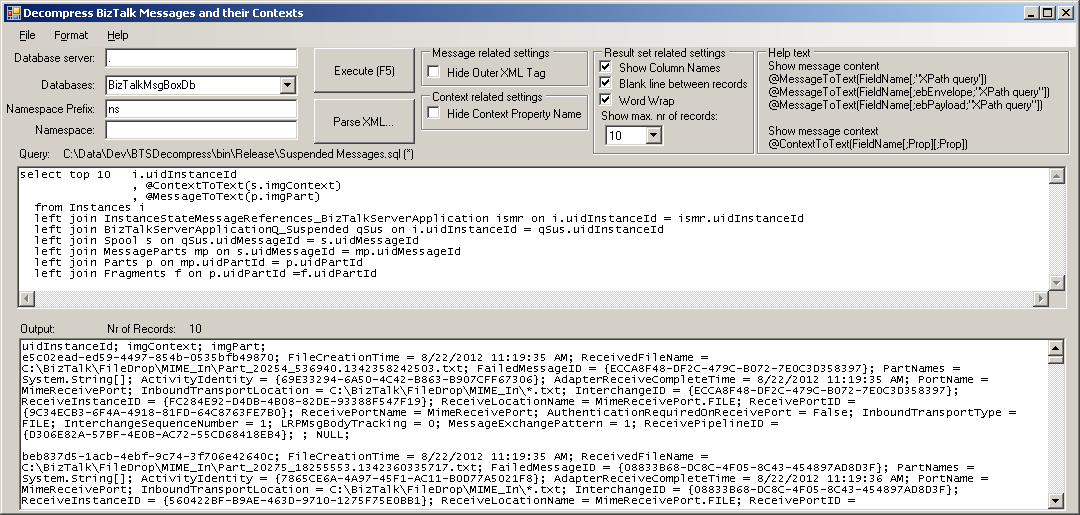
To make my job easier I'm still improving BTSDecompress. Here's an overview of the latest updates:

  • Addition of Tab Pages to be able to open more than 1 query
  • Addition of a Button bar to have easy access to some of the most used functions
  • Addition of a dialog screen for maintenance of namespaces
  • Addition of a beter query editor
  • Addition of a Grid View for presenting the output
  • Addition of a command-line version
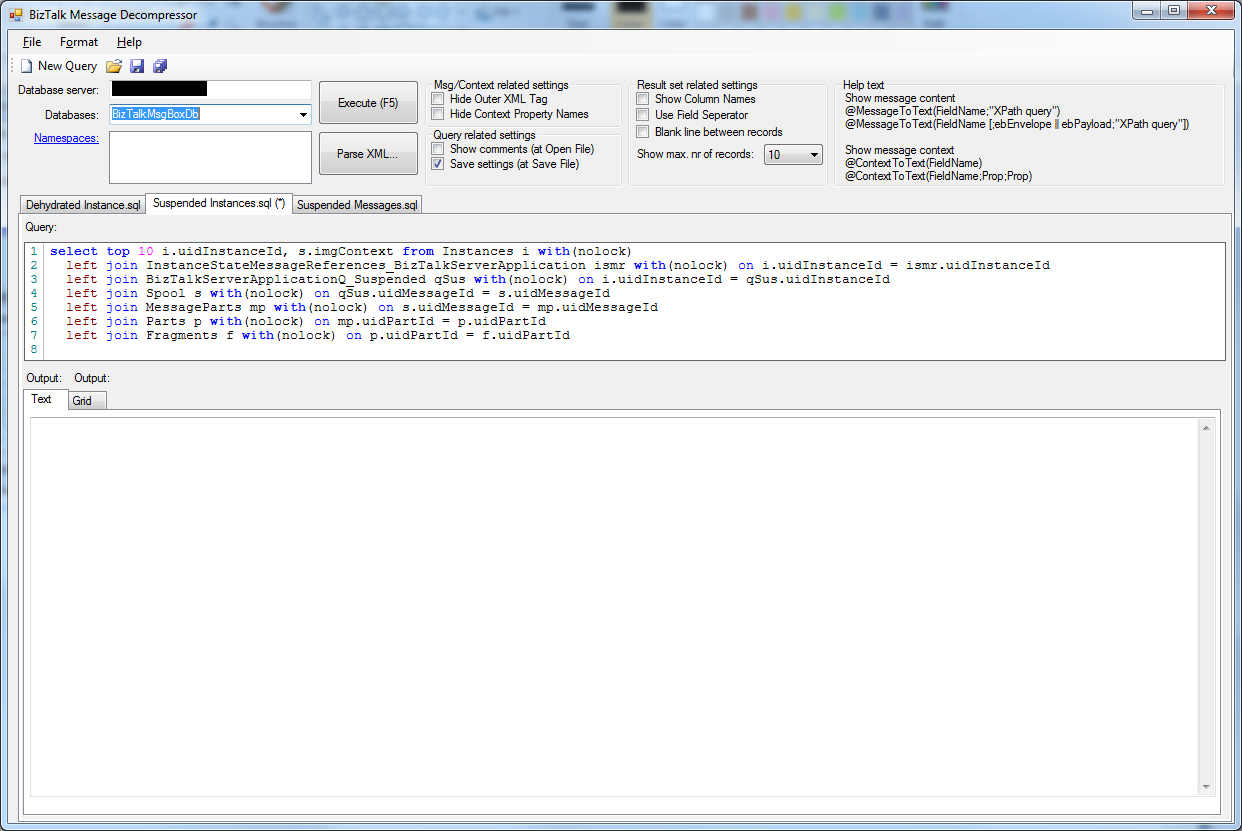
These updates are described in more detail below the following screen print.


Addition of Tab Pages

This enables you to be able to open more than one query at the same time. Most of the times I use BTSDecompress, I need 2 different queries. So I needed to open 2 instances of BTSDecompress. With the addition of Tab Pages, it's enough to start BTSDecompress just once and open all the queries I need.

Globally it works as follows:
  • BTSDecompress always starts up with one Tab Page and an empty query window
  • when you create a new query or open an existing one, it always shows up in a new Tab Page
  • the Tab of the Tab Page contains the file name of the query you opened. If you made changes to the query an asterisk is added to the Tab Page (see screen print)
  • you can close the currently selected Tab Page by pressing Ctrl-F4 or by clicking the right mouse button of the Tab Page and choose 'Close Tab'. In case the query has changed and might need to be saved, you are notified.
  • when you have opened multiple queries and you switch between Tab Pages (with Ctrl-Tab or mouse click), the settings which appear above the Tab Pages (Database Server, Database etc.) are also switched, making sure they reflect the settings of the currently active Tab Page/query

Addition of a Button Bar

For easy access to some of the most used functions a Button Bar is added. Currently it contains the following buttons:
  • New Query - open a new Tab Page with an new query
  • Open Query - open an existing query in a new Tab Page
  • Save Query - save the query in the active Tab Page
  • Save All - save all opened queries
It is likely that more buttons will become added in future releases.

Addition of a dialog screen for maintenance of namespaces

After you have executed a query, the results will show up in the output frame. In most cases the output consists of XML messages. One of the nice capabilities of BTSDecompress, is that it is possible to add XPath queries, enabling you to view exactly that part of the message that you are interested in.
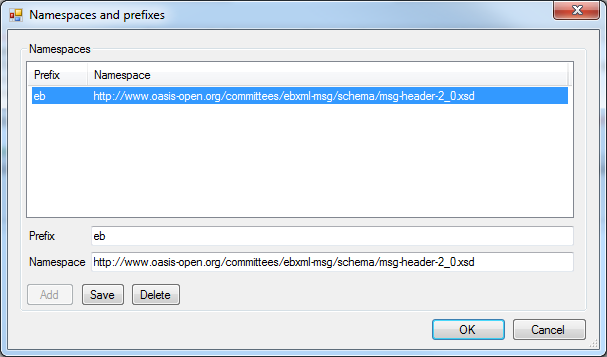
In many cases you might need namespaces to get to the part of your interest. In earlier releases of BTSDecompress, it was possible to add only 1 namespace. Since your message might contain more namespaces, it is now possible to add multiple namespaces. Maintenance (adding, editing, deleting) of these namespaces can be done with the new 'Namespaces and prefixes' dialog screen.


Of course the namespaces you entered are stored along with the query. This screen can be accessed by clicking the Namespaces hyperlink in the upper left corner of BTSDecompress.

Addition of a beter query editor

The query editor in the previous releases of BTSDecompress was nothing more than a multi line Text Box and did not have many features. I have to admit that I often created my queries in SQL Server Management Studio and copied them to BTSDecompress. So it was about time that BTSDecompress would get a richer query editor. I decided to use Pavel Torgashov's FastColoredTextBox, which is a nice and very rich Text Box!
Although currently I'm not using all of the capabilities of this Text Box, using this Text Box already makes using BTSDecompress much more attractive. This editor supports amongst others color recognition for T-SQL statements and line numbers.

Addition of a Grid View for presenting the output

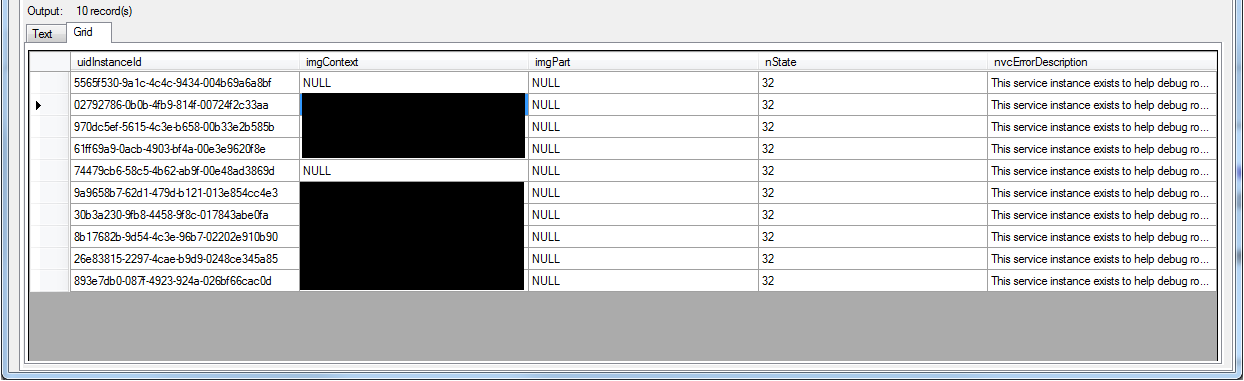
As of this release BTSDecompress not only shows the results in a Text View, but also in a nice Grid View for better readability. In contrast with SQL Server Management Studio, both Views are filled directly after executing your query.


Addition of a command-line version

This enables you to create batch jobs and have the output stored in a Text file. You can use the same queries as the ones you use for the GUI version of BTSDecompress. The command-line version of BTSDecompress is called BTSDecompress_cmd.exe and has  the following parameters:
  • -s: Database server
  • -d: Database
  • -SQLFile: Query which will be executed
  • -OutputFile: Location and name of the output file
  • -OverwriteOutputFile: Overwrite the output file if it already exists
  • -Namespace: Add (prefix and) namespace
  • -HideOuterXMLTag: Show just the content of a XML tag, without the tag itself
  • -HideContextPropertyNames: Hide the Context Property Names in the result
  • -ShowColumnNames: Show the field names in the result
  • -UseFieldSeperator: Show a Field Seperator (';') between the fields (and values) in the output
  • -BlankLineBetweenRecords: Add an extra blank line between the records in the output, for better readability
  • -?: Show Parameter Help
A couple of parameters can also be set in the query file, from the GUI version of BTSDecompress. By adding them as a parameter to  BTSDecompress_cmd.exe, the value which is set in the query file will be overruled.

More information


Where to find

BTSDecompress is Open Source software and can be found here: btsdecompress.codeplex.com.


Hopefully this tool is helpful to others as well.
Tuesday, April 16, 2013

Ordina organiseert de BTUG-bijeenkomst van 30 mei 2013

Het is ondertussen een goed gebruik geworden dat Ordina jaarlijks een groot BizTalk-evenement organiseert en host. Na de bijeenkomst van de Dutch BizTalk User Group (BTUG) in november 2011 en het Ordina BizTalk Innovation Event in februari 2012, host Ordina dit jaar wederom een bijeenkomst van de BTUG. Dit evenement zal op donderdag 30 mei plaatsvinden, in de ondertussen voor veel BizTalkers welbekende 11e etage van de A-toren van de hoofdvestiging van Ordina, te Nieuwegein.

Het programma ziet er als volgt uit:
- BizTalk Update (Dick Dijkstra, Microsoft)
- Theorie en praktijk van messaging/service bus in Azure (Steef-Jan Wiggers en René Brauwers)
- BizTalk Disaster Recovery (Lex Hegt + Jeroen Hendriks)

Ontvangst is vanaf 15.30u. Tussen de sessies door zijn softdrinks te krijgen en vindt het dinerbuffet plaats. Er wordt afgesloten met een borrel. Uiterlijk om 21.00u moeten de deelnemers het pand hebben verlaten.

Toegang is gratis.
Maximaal aantal deelnemers: 70
Aanmelden: http://btugnl20130530-es2005.eventbrite.nl/
Locatie: Ringwade 1, Nieuwegein (kaart)


Wednesday, April 10, 2013

Could not find server 'servername' in sys.servers after running the BizTalk Backup job on Windows Azure


After I provisioned a Windows Azure Virtual Machine, which was based on the BizTalk Server 2013 Beta image from the Gallery, I configured the BizTalk Backup job.

Normally it is enough to just apply the file locations of the Full backup and the Log backup and to Enable the job, but when I did this, I noticed in the History of the job, that the job failed.

The error I got was 'Could not find server BTS2013B in sys.servers', where BTS2013B is the name that I assigned to the Virtual Machine.


I checked the sys.servers table and retrieved the servername. Both showed something else than the expected name BTS2013B, namely WIN-QMPGBU8OQOK. Apparently this is the original name of the Windows installation on the VM.
 
 
To fix this problem I ran the following statements in SQL Server Management Studio,
 
EXEC sp_dropserver 'WIN-QMPGBU8OQOK';
EXEC sp_addserver 'BTS2013B', 'local';
 
Afterwards I saw that the server name is still WIN-QMPGBU8OQOK, but in sys.servers, the field data_source is now BTS2013B, which is enough for the BizTalk Backup job to run properly.
 
The only thing left is to restart the SQL Server service and then the BizTalk Backup job runs fine!
 

Thursday, March 21, 2013

Adding EndPoints on Windows Azure VM's

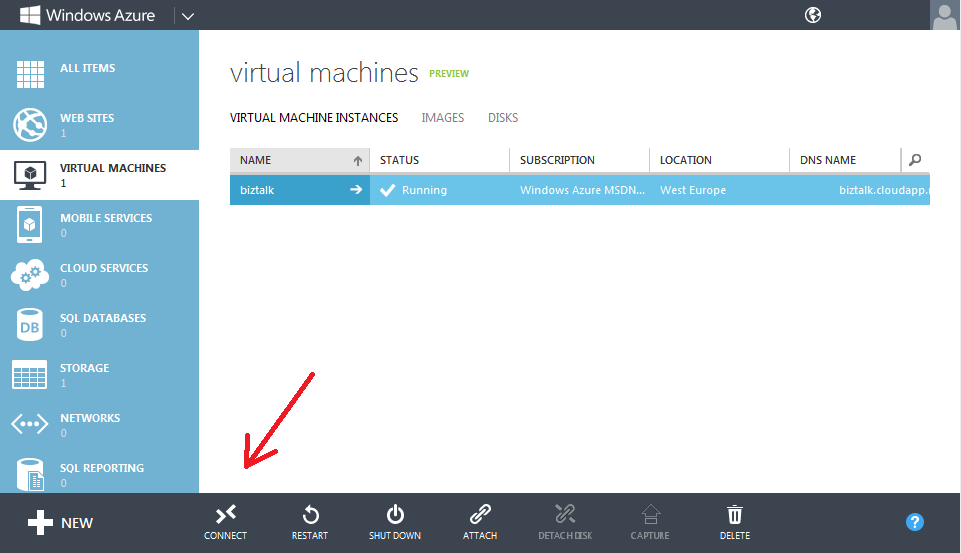
After you have created a Virtual Machine in Windows Azure, an EndPoint is created for accessing the Virtual Machine with Remote Desktop (RDP) from your local computer. An EndPoint is basically a mapping between a Public IP Port and a Private IP Port. Each time you use the Windows Azure Management Portal to connect to your Virtual Machine in Windows Azure, by hitting the Connect button, the RDP connection connects to the Public IP Port. The network traffic that arrives at that Public port, becomes routed to the Private port, making sure the network traffic accesses the application or service it was intended for.


So for RDP everything is setup nicely by Windows Azure, but say you have a SQL Server database on that VM, which you want to access from a (Azure) website or your local SQL Server Management Studio. In that case you need an extra EndPoint to be able to access that database from the outer world.

Although not advisable, you can map Public IP Port 1433 (SQL Server's standard port) to Private Port 1433. But by doing so, you make it easier for hackers to access your database (although they don't have security credentials), so it's better to take a random number between 1024 and 65535 and configure that as the Public IP Port.

Follow these steps to create an EndPoint for accessing a SQL Server database.

Login to the Management Portal with your Microsoft account which is mapped to your Windows Azure subscription and click on 'Virtual Machines' in the menu on the left. Next select a Virtual Machine  by clicking on it (that is: if you've created one beforehand) and then click on 'EndPoints'. In the screen that follows you'll see that an EndPoint is already created for Remote Desktop connections.


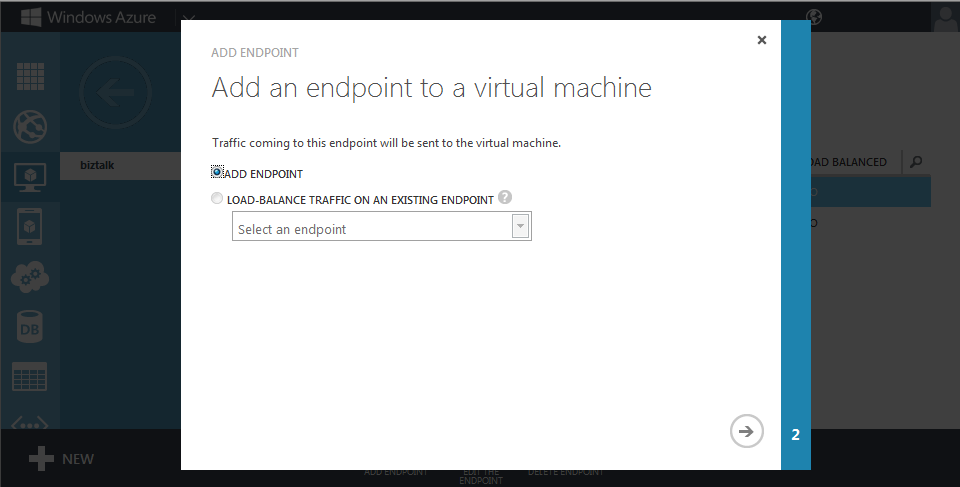
Now click the 'Add EndPoint' button, afterwhich you get the first screen of a 2 pages wizard.


Leave the bullet on the first radio button and proceed to the next screen of the wizard, by clicking on the small arrow button in the lower right corner.


In this screen you have to make a couple decisions. First, select an identifiable name for the EndPoint. Since we are creating an EndPoint for SQL Server, you could choose a name in that direction. Keep in mind that spaces are not allowed!
The second choice you have to make is the number of the Public Port. Choose a random number between 1024 and 65535, preferable NOT 1433.
The last choice is actually a value you should already know, namely the (Private) Port which is used for SQL Server. By default SQL Server communicates on port 1433. So unless you did configure another port, enter 1433 for the Private Port.
So far the configuration of the EndPoint. Now click the button with the check mark, to have Windows Azure create the EndPoint. This can take 1 or 2 minutes.
 
What's next
Having an EndPoint configured to be able to access a database in a Windows Azure VM is only one step. The next steps will be creating a SQL Server authentication login and grant it the needed authorizations. Read more about it in this article on BizTalk Events.


Wednesday, November 14, 2012

BizTalk 2013 Beta: Viewing dependencies

In early November 2012 the Beta release from BizTalk 2013 has been released. That version number is interesting in itself, as the CTP was called BizTalk 2010 R2.
One on the new functionalities in this release, which was not yet available in the CTP is a Dependency Viewer. As the name already suggests, this functionality enables the user of the BizTalk Server Administration Console to view which BizTalk artifacts depend on other artifacts. This article intends to provide more information on how this functionality works.

The problem it solves

Most BizTalk Groups contain multiple BizTalk Applications which might contain hundreds of schemas, (custom) pipelines, maps, orchestrations and endpoints. These artifacts are not autonomous, they depend on other artifacts and those artifacts might also depend on other artifacts.

When it comes to subjects like deployment and troubleshooting, it's handy to know which artifacts rely on each other. That's the point where the Dependency Viewer comes in.

Where to find

The Dependency Viewer can be found in the Administration Console. It can't be missed in the lower part of the screen under the following artifacts:
  • Receive Ports
  • Receive Locations
  • Send Ports
  • Send Port Groups
  • Schemas
  • Maps
  • Pipelines


How it works

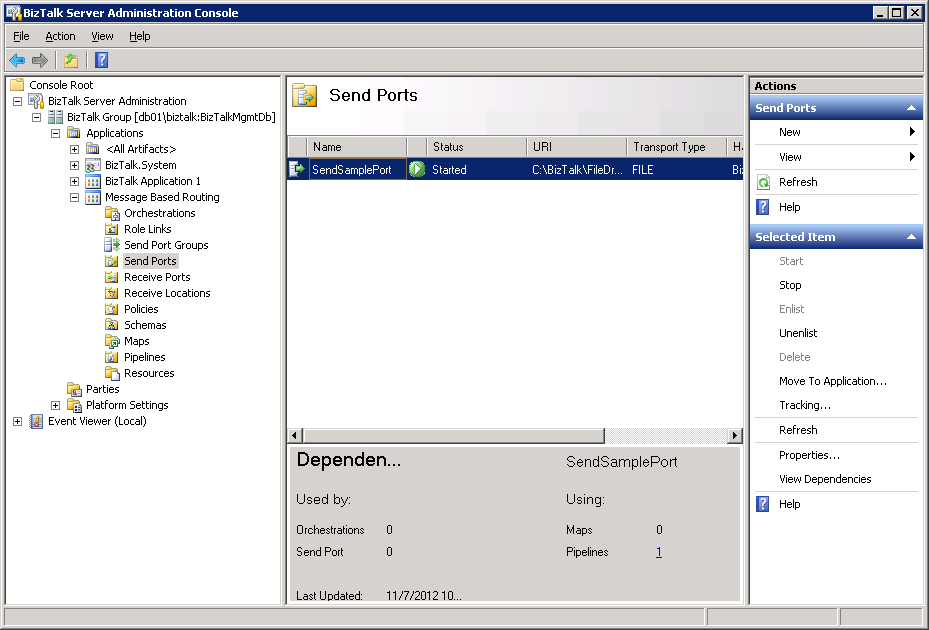
Whenever you select one of the mentioned categories, the Dependency Viewer appears in the lower part of the pane that shows the artifacts. To find out which dependencies a certain artifact has, you need to hit the 'View Dependencies' button in the right pane. So unfortunately the Admin Console does not automatically show the dependencies, whenever you click on another artifact. Hopefully this will be fixed in a later BizTalk 2013 version.
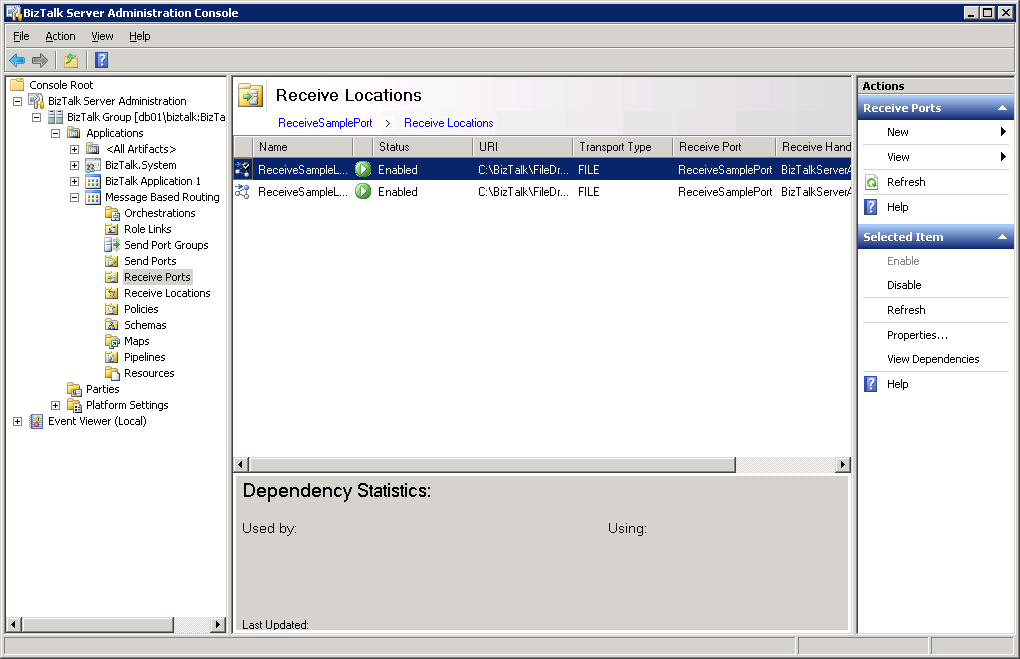
Once you click that hyperlink the Dependency Viewer shows the dependencies, if any, of the selected artifact. It does this per category.
If dependencies exist, the number of dependencies appears as a hyperlink. The dependencies themselves appear after you have clicked the hyperlink.


The screen above shows the dependencies for a Receive Port called ReceiveSamplePort. This port has 2 Receive Locations which are shown both.
Although the upper Receive Location is selected, no dependencies are shown. If you want to see its dependencies, click View Dependencies in the right pane again and in this case it would show that this Receive Location depends on one Receive Port and one Pipeline.

Conclusion

The way the Dependency Viewer is implemented in this Beta release is not (yet) very impressive. I mention a couple of down sides on the current implementation:
  • no auto-retrieve. You need to hit the 'View Dependencies' button
  • the Dependency Viewer is always there, it's not possible to change its size or hide/show the viewer
  • no dependencies shown in case of Message Based Routing scenarios, for example a Send Port with a filter to a Receive Port
  • no dependencies shown relating to Hosts
I'm looking forward to the next BizTalk 2013 release and I am sure the Dependency Viewer will be implemented in a better and richer way.

Friday, October 12, 2012

Real World Scenarios with BizTalk360

During the Bouvet BizTalk Innovation Event, 26/27 September 2012 in Stavanger, Norway, there were 2 presentations about BizTalk360. One was held by Saravana Kumar, the founder of BizTalk360, and I did another presentation about this product. Where Saravana showed many functionalities, including the new V5 functionalities, from BizTalk360 from a Product perspective, I wanted it to turn around and have a look at BizTalk360 from a Customer perspective. Therefore I talked about some Real World scenarios with BizTalk360.

In addition to my presentation I wrote an article on this topic and extended it with describing the most important functionalities in V5, which was released recently.

In the article I explain why having a Shared Infrastructure, like BizTalk, makes monitoring more complex. I also describe how BizTalk360 reduces the number of consoles you need to monitor a BizTalk environment.

To expand the visibility from BizTalk360, I posted the article on CodeProject. You can find it here:
http://www.codeproject.com/Articles/474905/Using-BizTalk360

More information about BizTalk360, can be found here:
http://www.biztalk360.com

Thursday, September 13, 2012

Important updates to BTSDecompress

As an BizTalk Administrator/Technical Application Engineer, I regularly need to fix problems with BizTalk that I am not able to fix easily with the out-of-the-box tools. For example, at the moment we experience an issue which leads to suspended messages on a particular receive location. To fix that issue I need easy access to these suspended messages and their content. Off course I can get to the content with the BizTalk Administration Console, but because I need to fix about 50 of those messages per day (awaiting a structural solution), I need easier access to the MessageBoxDb to save time and to prevent myself from RSI, due to so many mouse clicks.

Since a couple of years I maintain BTSDecompress on CodePlex. This tool enables me to query the BizTalk databases and retrieve message content and context. Although this tool works fine for me, the main disadvantage is that, until now, it only supported BizTalk 2006. Therefore only a limited group of BizTalk users could potentially benefit of this software.


Because of the issue I mentioned in the first paragraph, lately I've been working a lot on that tool. It has reached version 1.5 and in this version a number of important improvements have been applied. Here follows a list of the most important changes:

Support of BizTalk releases
- BizTalk 2006
- BizTalk 2010
- BizTalk 2010 R2 CTP

I expect BTSDecompress to work with the other major BizTalk releases as well (2004, 2006 R2, 2009), but I did not (yet) test it, so I don't mention these versions here.

Support of Windows versions
- Windows Server 2003
- Windows Server 2008 R2
- Windows 7

I expect BTSDecompress to work with the other major Windows versions as well (XP, Vista, 2008), but I did not (yet) test it, so I don't mention these versions here.

Query maintenance
It is now possible to Create, Open, Save and Save As queries. This makes it a lot easier to maintain multiple queries.

ebXML support
It was already possible to fire XPath queries on the message content, but you can now do that as well upon ebXML headers and envelopes.

Where to find
BTSDecompress is Open Source software and can be found here:
btsdecompress.codeplex.com


Tuesday, September 04, 2012

Developing BizTalk 2010 R2 with Visual Studio 2011??

Since a couple of days Microsoft enabled Windows Azure users to create Virtual Machines, which are based on BizTalk 2010 R2 CTP. This is great, because it offers those users to have a preview at that release, combined with some of the new related products, like SQL Server 2012 and .NET 4.5.

However, given the screenshot below, which was taken from the BizTalk 2010 R2 CTP Installation Wizard, it looks like Microsoft expected to release the next version of Visual Studio sooner :-)


Tuesday, June 19, 2012

Bouvet BizTalk Innovation Event

Together with Steef-Jan Wiggers, Sandro Pereira, Nino Crudele, Saravana Kumar and host Tord Glad Nordahl, I will do a presention at the Bouvet BizTalk Innovation Event which will be held on 26th and 27th September at Bouvet's office in Stavanger, Norway!

During my presentation I will tell about the added value of Message Flow Monitoring over Endpoint Monitoring. Further I'll show how Message Flow Monitoring is implemented in BizTalk360.

The program looks as follows:

DAY 1
09:00 Registration
09:30 Introduction
10:30 Pause
10:45 Steef-Jan Wiggers: Adapter Pack Integration Capabilities (BizTalk)
12:00 Lunch
13:00 Sandro Pereira: Introduction to the Azure Service Bus EAI/EDI features.
13:45 Pause
14:00 Tord Glad Nordahl: Throttling/& Thresholds
14:45 Pause
15:00 Saravana Kumar: Using BizTalk360
15:45 Lex Hegt: Message Flow Monitoring BizTalk 360
16:00 Pause
16:15 Nino Crudele: BizTalk assessment and architecture review
17:00 Tord Glad Nordahl: Wrap up – Road map BizTalk Next
17:30 Finish
20:00 Dinner

DAY 2
09:00 Startup
09:30 Labs
11:30 Lunch
12:30 Labs
15:30 Finish

I want to thank Tord and has company Bouvet for their hospitality and for giving me the opportunity to do a presentation.

Links:
- more information about the event
- prices
- registration

Off course this BizTalk event is added on http://www.biztalkevents.com/.

Thursday, May 17, 2012

BizTalk Message Based Routing: why is my file not transfered to the location of the Send Port

Inspired by some tweets I had with Sam Vanhoutte (@SamVanhoutte), Mikael Sand (@MikaelSand) and Dean Robertson (@DeanRobertson), I decided to write down a number of our experiences of what can go wrong, or what you could forget, in case of a simple message based routing scenario.

So basically this article contains a checklist, which can be used as a reminder in case your message based routing scenario does not work, like you expected.

Scenario
Imagine you have a message based routing solution in its most simple form.
Your Receive Location listens to a local folder and your Send Port is subscribed to the Receive Port from the Receive Location. The URI of the Send Port is another local folder.
Although this is a very simple solution, still there is enough that can prevent the messages from flowing from A to B.

1. The Receive Location listens to the wrong folder or contains a typo
To be absolutely sure you have configured the correct folder, copy the path from the address bar in Windows Explorer and paste it at the URI field in the Receive Location.

2. The Receive Location is not enabled
If the Receive Location is not enabled, it won't poll the configured folder, so you must enable the Receive Location.

3. A Service Window or Start/Stop Date prevents the Receive Location to poll for incoming messages
On a Receive Location a Service Window can be configured. When a Service Window is set, the Receive Location will only process incoming messages during the configured timeframe. So be sure no Service window is active.
Furthermore you can also configure a Start/Stop Date. When a Start Date is configured (and enabled) which lies in the future, no processing will take place until that date. When a Stop Date is configured (and enabled) which lies in the past, no processing will take place from that date on.

4. BizTalk is not authorized to access the file location of the Receive Location
Make sure that the identity which is configured at the Host which runs the Receive Location, has enough permissions (read/write) on the folder of the Receive Location. Failing to do so, results in the Receive Location disabling itself (after some retries).


5. Files with names longer than 256 characters are encountered in the receive location
Files with names longer than 256 characters are ignored by BizTalk, so they will not picked up by the Receive Location. So make sure your file names are shortes than 256 characters.

6. Files have the System or Read-only attribute
If (one or more of) the files at the Receive Location have the System or Read-only attribute, they will be ignored by BizTalk, so make sure that the files do not have the System or Read-only attribute.


7. Empty (zero byte) files
If an empty (zero byte) file is picked up by the File Receive adapter, the file is deleted and a warning is written to the application log of the BizTalk server. The File Receive adapter deletes zero byte files by design.


8. The Host Instance which runs the Receive Location is not started
Host Instances take care of the actual processing of your Receive Locations, Send Ports and Orchestrations. So if the Host Instance from the Receive Location is not started, no files will be picked up, although your Receive Location is enabled, so start the designated Host Instance.

9. The filter on the Send Port contains the wrong Receive Port or contains a typo
Correct this by copying the name from the Receive Port and paste it in the filter of the Send Port.

10. The name of the Receive Port in the filter of the Send Port is surrounded with quotes
Quotes are not needed, so remove them.

11. The Send Port is not enlisted and started
If the Send Port is not enlisted, there is no active subscription for the Send Port. Further the Send Port must be started to send any files, coming from the Receive Port to the outgoing folder. So Enlist and Start the Send Port.

12. The Host Instance which runs the Send Port is not started
Host Instances take care of the actual processing of your Receive Locations, Send Ports and Orchestrations. So if the Host Instance from the Send Port is not started, the file will be picked up by the Receive Location, stay in the MessageBox, but won't be delivered to the outgoing folder, so start the designated Host Instance.

13. BizTalk is not authorized to access the file location from the Send Port
Make sure that the identity which is configured at the Host which runs the Send Port, has enough permissions (read/write) on the folder of the Send Port. Failing to do so, will result in suspended messages.


14. The File Send Adapter cannot write to the file specified because it has the Read-only or System attribute
If you want to append data to a file, but the file to which is written by the Send Port has the System or Read-only attribute, BizTalk won't be able to write to it, so make sure that the file on the Primary (or Backup) Location do not have the System or Read-only attribute.


15. The Send Port uses the Backup Transport (if configured)
In case anything went wrong while writing to the Primary Transport from the Send Port, BizTalk tries to write the message to the Backup Transport if it is configured. So if a message shows up on on the Backup Transport, apperently went wrong while delivering the message to the Primary Transport.


16. Mismatch of the file mask on the Receive Location
The file that you drop on the folder of the Receive Location does not match the file mask from the Receive Location. If you are dropping a .XML file while the Receive Location expects only *.TXT files, your .XML file won't be picked up by the Receive Location.

17. Tricked by Windows Explorer
You think you are dropping a .XML file, and the file mask expects .XML files, but still the file is not picked up. Perhaps you are tricked by Windows Explorer. Windows Explorer has an option to hide familiar extensions of files. So if you have a file called order.xml.txt, Windows Explorer hides the .txt extension, perhaps giving you the idea that you are dealing with a .XML file, while in fact you are dealing with a .TXT file. In Windows Explorer turn off the option to hide familiar extensions, making sure that you will always deal with the full file name.

Thanks to Mikael Sand for supplying a number of possible problems. Some of the problems are derived from this article.